
How to Take a Screenshot on Mac: Easy & Powerful Beginner-to-Pro Guide
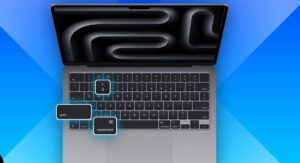
Learning how to take a screenshot on Mac is one of those small skills that makes a big difference. Whether you’re saving an online receipt, explaining a problem to support, or creating a quick tutorial, screenshots help you communicate faster and clearer. Apple’s built-in tools make the process simple, even if you’ve never tried it before.
With the right Mac screenshot shortcut, you can capture anything on your display in seconds. From full-screen images to precise selections, Mac screen capture features are designed for speed and control. This guide on screenshot on macOS walks you through every method, shows you how the Mac screenshot tool works, and explains where are screenshots saved on Mac so you never lose an important image again.
Why Knowing How to Screenshot on Mac Is Important
Screenshots act like digital sticky notes. They freeze errors, capture memories, and explain ideas faster than long emails ever could. When you master how to take a screenshot on a Mac, everyday tasks feel lighter. Support tickets become clearer. Tutorials become easier. Communication becomes visual.
On modern systems, screenshot on macOS tools work instantly. A single Mac screenshot shortcut can save minutes. A quick Mac screen capture can avoid confusion. Once this habit forms, you stop guessing and start showing. That small shift changes how you work.
How to Take a Screenshot on Mac (All Shortcut Methods)
Apple built powerful keys into every Mac. These Mac screenshot keys work without downloads. Each Mac screenshot command fits a specific need, whether you want speed, control, or precision. This section explains every method so how to take a screenshot using keyboard on Mac becomes automatic.
The table below shows the core shortcuts used for screenshot Mac Mojave and later systems. These work on most MacBooks and desktops today and form the backbone of the Mac screenshot tool experience.
| Action | Shortcut | Result |
|---|---|---|
| Capture entire screen | Shift + Command + 3 | Saves full display image |
| Capture portion | Shift + Command + 4 | Select custom area |
| Capture window | Shift + Command + 4, then Space | Snaps active window |
| Open toolbar | Shift + Command + 5 | Advanced capture menu |
| Touch Bar | Shift + Command + 6 | Touch Bar image |
Cmd + Shift + 3 – Capture Entire Screen
This shortcut instantly capture entire screen Mac content. Press the keys. Release. The system snaps everything visible. It’s perfect for receipts, full webpages, or desktop overviews. Many beginners start here when learning how to screenshot entire screen on Mac.
After capture, a small thumbnail appears. Click it to edit screenshot on Mac tools. Wait and it saves automatically as a screenshot on Mac desktop file. This simple action teaches confidence fast.
Cmd + Shift + 4 – Capture Selected Portion
This method turns your pointer into a crosshair. Drag to capture part of screen Mac areas only. It feels like cropping reality. Designers love it. Teachers rely on it. It’s the heart of how to take partial screenshot on Mac.
Press Escape to practice how to cancel a screenshot on Mac. Hold Space to learn how to move screenshot selection Mac before release. These tiny controls turn a simple Mac screen snip into a precision tool.
Cmd + Shift + 4 + Space – Capture a Window or Menu
After pressing the keys, the cursor becomes a camera. Click any app window. The system will capture window Mac images cleanly, without clutter. This method answers how to screenshot a window on Mac in one smooth motion.
Hold Option to remove shadows. This helps when you need crisp visuals for guides or blogs. It also works well when learning how to capture menu on Mac moments for tutorials.
Cmd + Shift + 5 – Open Screenshot Toolbar
This shortcut opens a control bar. It’s the command center for modern Mac screen grab tools. Here, how to open Screenshot app on Mac becomes simple. You can choose full screen, portion, or window capture.
The toolbar also launches screen recording. It shows timers, save locations, and advanced Mac screenshot options. Many professionals never go back after learning this.
Cmd + Shift + 6 – Capture Touch Bar (MacBook Pro)
On supported models, this shortcut captures the Touch Bar itself. It’s helpful for training, reviews, or feature demos. It directly supports how to take screenshot on MacBook Pro workflows.
The image saves like any other. It appears as a standard file and opens for markup. This tiny detail often surprises new users.
How to Use the Mac Screenshot App (Cmd + Shift + 5)
The Mac Screenshot app feels like a studio inside your Mac. When you press the shortcut, icons appear along the bottom. Each icon represents a different capture style. This unified Mac screenshot tool reduces confusion.
Inside the Options menu, you can set timers, pick microphones, and change destinations. This is where how to change screenshot save location on Mac happens. It’s also where advanced users fine-tune every Mac screenshot options choice.
How to Take a Partial Screenshot on Mac
Partial screenshots shine when full images feel noisy. Dragging a selection isolates the message. This technique supports how to take partial screenshot on Mac with speed and clarity. It’s ideal for highlighting bugs, quotes, or small interface elements.
You can resize the box before release. You can pause and reposition it. Learning these gestures transforms a quick snap into a thoughtful Mac screen capture that tells a clearer story.
Where Are Screenshots Saved on Mac? (Find Your Screenshots)
Most images land on the desktop. This answers the common question, where are screenshots saved on Mac. Each file shows a timestamped name. This system helps track work over time.
If the desktop feels crowded, change it. The Screenshot app lets you control Mac screenshot location settings. This solves where do screenshots go on Mac confusion and keeps projects organized.
Pingback: The 4 Best Laptops For Programming of 2026
I agree. The ASUS Zenbook OLED offers excellent display quality, and its vibrant screen makes coding more comfortable. It also performs well during multitasking and handles heavy development workloads efficiently.